Fix 500 Internal Server Errors Safely
Diagnose HTTP 500 errors with request scope, Apache or Nginx logs, PHP-FPM evidence, safe config tests, targeted rollback, and recovery checks.

VPS reliability, backups, and security basics
He explains VPS reliability, security basics, backup discipline, and provider trade-offs for cautious builders.
A 500 Internal Server Error means the server hit an unexpected condition and could not complete the request. Fix it by matching one failed request to the web-server, PHP, or application log, then isolating the smallest recent change. Do not start with broad permission changes or higher limits.
The risk is making the incident harder to read. If you restart every service, clear every cache, change ownership, and raise memory at once, the page may return while the cause disappears. You have recovery without diagnosis, which is how the same outage earns a return visit.
First five minutes: stabilize and scope
Scope before action. If a recent deployment clearly triggered the outage and your normal release process has a tested rollback, use that rollback. Do not improvise a manual file replacement on production. Preserve the failed release logs and note what changed.
Then answer four questions:
- Is the failure on every URL, one application, one route, or one request method?
- Do static files load while PHP or another application handler returns 500?
- Did the error begin after a deploy, plugin update, configuration edit, certificate change, or infrastructure event?
- Can you reproduce it once with a precise timestamp and request path?
Record the timestamp with timezone, hostname, URL path, request method, user state, and any request or trace ID. Avoid copying passwords, cookies, tokens, form contents, or personal data into an incident note.
For a header-only view without downloading the response body, run a request against a safe test URL:
curl -sS -o /dev/null -D - "$BASE_URL/failing-path"
Use a real GET when the failure appears only during GET. Do not replay a payment, deletion, email-send, or other state-changing request merely to collect another 500.
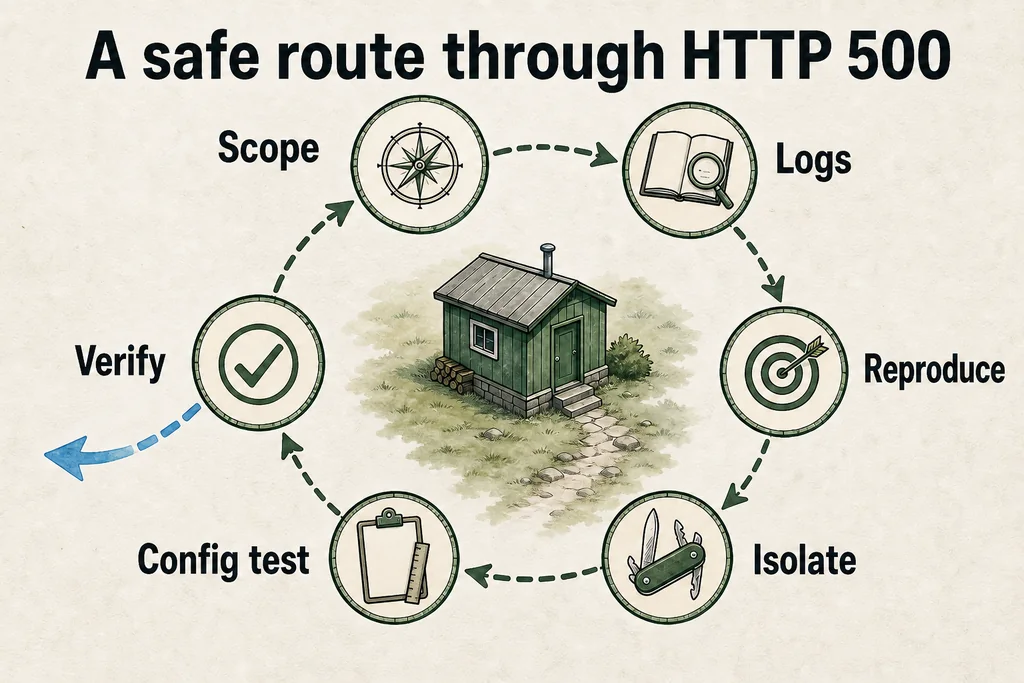
The shortest safe route is evidence first: reproduce one request, match its timestamp to logs, isolate the recent change, test configuration, and verify the same request again.
What HTTP 500 tells you
The HTTP specification defines 500 as an unexpected server condition that prevented the request from being fulfilled. It does not identify which layer failed.
| Layer | Typical evidence | First safe check |
|---|---|---|
| Reverse proxy or web server | Syntax error, rewrite loop, unreadable file, upstream failure | Web-server error log and config test |
| PHP-FPM or another app runtime | Fatal error, worker exit, timeout, missing extension | Runtime log and service status |
| Application | Unhandled exception, plugin or theme failure, bad deploy | Application log and recent-change diff |
| Database or external service | Connection refusal, authentication failure, query exception | Dependency health and application error |
| Host resources | Full disk, exhausted inodes, memory pressure, process limits | Read-only host metrics and kernel or service logs |
A proxy can also translate an upstream failure into a generic 500 page. Follow the request through the stack you actually run. Do not assume the branded error page names the failing component.
Read the matching log entry first
Apache documents its error log as the first place to look when request processing fails. Nginx has its own error log, PHP-FPM may log separately, and the application can write to another destination again.
Find the configured locations rather than trusting a path copied from a tutorial. A control panel, container log driver, system journal, virtual-host configuration, or managed-hosting dashboard may own the useful record.
One request, one timestamp. Once you know the path, read a bounded tail around the failure:
tail -n "$LINE_COUNT" /path/to/error.log
On a journal-based service, narrow by unit and time rather than dumping the entire system history:
journalctl -u your-service --since "$INCIDENT_START" --no-pager
Match time and path. The first error near the request is usually more useful than a later cascade. Search for fatal errors, exceptions, syntax failures, permission denials, missing files, upstream connection failures, worker exits, and resource exhaustion.
Do not paste a full production log into a public ticket. Redact tokens, cookies, authorization headers, database credentials, filesystem details that expose secrets, and user data.
Apache: test configuration and .htaccess carefully
Test syntax before reload. Apache provides a configuration test that parses its files without applying a restart:
apachectl configtest
If the output identifies a file and line, inspect that exact change. Fix it in version control or the managed configuration source, run the test again, and only then use the deployment’s normal reload procedure.
An .htaccess file can trigger a 500 when it contains invalid syntax, an unavailable module directive, or a directive not permitted by the server’s AllowOverride policy. It is relevant only when Apache is configured to read it. Nginx does not use .htaccess.
Before testing an .htaccess change:
- make a recoverable copy;
- note the current checksum or version;
- change one recent directive at a time;
- keep the test window short;
- restore the original if the hypothesis fails.
If you control the main Apache configuration, its own documentation recommends keeping directives there instead of relying on per-directory .htaccess files. That gives you one configuration source and a syntax test before reload.
Nginx: validate the proxy and upstream path
Nginx provides a read-only syntax and referenced-file test:
nginx -t
Run it before reload. A passing test proves that Nginx can parse the configuration and open referenced files; it does not prove that PHP-FPM, the application, or the database is healthy.
Trace the upstream. If Nginx serves a static file but the application route fails, check the error log for the upstream address, socket, timeout, and response behavior. Then check the matching PHP-FPM or application log at the same timestamp.
For a Unix socket, inspect whether the configured path exists and whether the Nginx worker identity can reach it. For a TCP upstream, confirm that the intended process is listening on the configured address. Do not replace a socket with an open network listener as a quick workaround.
PHP and PHP-FPM: find the fatal error
Do not expose errors to visitors. PHP can log errors without displaying them to visitors. That is the correct production posture: keep diagnostic detail in a protected log, not in the response page.
Check which configuration the failing runtime actually loads. Command-line PHP and PHP-FPM can use different configuration files, versions, extensions, and environment variables. A successful CLI command does not prove the web request uses the same runtime.
For a recently changed PHP file, a syntax-only lint is a safe first check:
php -l path/to/changed-file.php
Lint is not execution. It will not find a database failure, missing secret, runtime type error on another path, exhausted worker pool, or application exception.
PHP-FPM has its own error log and severity settings. Worker output is not necessarily copied into that log unless the pool is configured to capture it. Follow the actual pool configuration instead of enabling broad debug output on a live site.
Memory limits are evidence, not a default fix
If the log names an allowed-memory exhaustion, identify the request and allocation path first. PHP’s memory limit exists to stop one script from consuming the host.
Raising it can be appropriate for a known workload after measuring available memory and concurrency. It is not a substitute for fixing an unbounded query, image operation, import, recursion, or plugin defect. Never set an unlimited value as an incident shortcut.
WordPress: isolate the recent change
For WordPress, the common suspects are a plugin, theme, custom code change, corrupted generated cache, or exhausted PHP resource. The log still decides which branch to follow.
WordPress documentation recommends a staging environment or backup before changing debug configuration. If you enable a debug log, keep error display off for visitors, reproduce the failure once, collect the useful entry, and remove temporary debug exposure after the incident.
Disable only the named suspect. If a plugin was just updated and the stack trace points into it, deactivate that plugin through the normal administrative or command-line workflow. Record the version and preserve a rollback path. Do not rename the entire plugins directory unless you have no narrower route and understand the site impact.
If the error appears only in the admin, checkout, scheduled task, upload, or API endpoint, reproduce that specific route in staging. A homepage check cannot verify a failing background job.
Permissions: inspect, do not spray chmod
Inspect before changing. Permission advice is where a small outage becomes a security problem. Do not apply recursive world-writable permissions. Do not copy a blanket file-and-directory mode from a blog post. Ownership, deployment user, web-server user, shared groups, ACLs, containers, and mounted storage differ.
Let the log name the path. If it reports permission denied, inspect the file and every parent directory:
namei -l /path/to/reported/file

stat /path/to/reported/file
Compare owner, group, mode, and ACLs with a nearby working file created by the same deployment. Fix the smallest incorrect boundary through the deployment or provisioning source. Avoid changing web-server binaries, configuration roots, or log directories to writable by the application user.
Check host resources without guessing
A full filesystem or inode table can break sessions, caches, uploads, logs, database writes, and application startup. These checks are read-only:
df -h

df -i
If space is exhausted, identify the consumer before deleting anything. Rotate through the existing log policy, remove only known disposable build or cache artifacts, and preserve forensic logs. Never use a broad recursive delete from an incident guide.
For memory pressure, inspect the host and service logs for out-of-memory events, worker exits, and restart loops. A process restart may restore capacity briefly while leaving the leak or concurrency problem intact.
Assume the cheap plan is crowded, but verify the evidence. Shared hosting can impose process, memory, or execution limits that are not visible from PHP configuration alone. The hosting control panel or support team should be able to identify which limit was reached and when.
Cause patterns and safe responses
| Evidence | Likely branch | Safe response |
|---|---|---|
| Syntax error names a config file | Web-server configuration | Correct that line, retest syntax, then reload normally |
| Stack trace starts in a recent release | Application regression | Roll back through the tested release mechanism or ship a narrow fix |
| Permission denied names one path | Ownership, mode, ACL, or parent traversal | Compare with a working peer and correct the smallest boundary |
| Allowed-memory fatal error | Workload or PHP limit | Measure the operation and host headroom before changing code or limit |
| No space left on device | Disk blocks or inodes exhausted | Identify the consumer and use the established retention or cleanup policy |
| Upstream connection refused | Runtime stopped, wrong address, or unavailable socket | Check service state and configured endpoint before restarting |
| Database connection exception | Database, network, secret, or capacity problem | Test the dependency from the application context and protect credentials |
One log line can be a symptom rather than the root cause. A database timeout might follow disk exhaustion; a missing socket might follow a failed PHP-FPM start. Read backward to the first failure in the chain.
Verify recovery and close the incident
A reload is not verification. Repeat the original failing request with the same method and relevant user state. Then test an adjacent route, a static asset, and one health or dependency check appropriate to the application.
Watch the error log during verification. Confirm that the response is correct, not merely non-500. A login page returned to an API client, an empty checkout, or a cached success page is not recovery.
Finish with this checklist:
- Remove temporary debug display and narrow any extra log verbosity.
- Confirm services are stable and not restarting.
- Record the cause, fix, timestamps, and affected routes.
- Add a regression test, config test, alert, capacity threshold, or deployment guard that would catch the same failure earlier.
- Verify backups and test the restore if the incident involved data or a rollback.
Checklist
- Scope: record the failing path, method, time, host, user state, and recent change without collecting secrets.
- Evidence: match one request to the web-server, runtime, application, and dependency logs.
- Isolation: change or roll back only the component supported by the first relevant error.
- Safety: run Apache or Nginx configuration tests before reload; never use blanket chmod or unlimited PHP memory.
- Recovery: repeat the original request, check adjacent paths and logs, remove debug exposure, and document prevention.
FAQ
Can a browser cache cause a 500 Internal Server Error?
Should I rename .htaccess to fix a 500 error?
What permissions fix HTTP 500?
Should I increase the PHP memory limit?
What should I send hosting support?
Prepared by
VPS reliability, backups, and security basics
He explains VPS reliability, security basics, backup discipline, and provider trade-offs for cautious builders.
Verified facts
HostScout editorial