Fix WordPress Plugin Conflicts Safely
Fix WordPress plugin conflicts without guessing: isolate the cause on staging, preserve rollback, read useful logs, and verify the whole site.

WordPress hosting and renewal-cost traps
She audits WordPress plans, renewal bills, backups, and plugin-heavy stores for independent operators.
To fix a WordPress plugin conflict safely, contain the failure, capture the current plugin state, and reproduce the symptom on staging. Deactivate only a suspected plugin or controlled group, keep a tested restore path, inspect logs, then verify checkout, forms, login, scheduled tasks, and caching before changing production.
First decide whether this is an outage or an investigation
A plugin conflict can appear as a critical-error page, blank screen, broken editor, failed checkout, missing form submission, slow request, or an admin action that stops working. Those symptoms do not prove a plugin is responsible. A theme, WordPress core, PHP, the database, exhausted resources, or an external service can look similar.
Containment comes before diagnosis. If customers cannot buy, sign in, or submit a critical form, restore the last known working state or deactivate the one component changed immediately before the failure. Do not keep experimenting on production while the outage clock runs.
If the site still serves its important paths, preserve the evidence and investigate on staging. Record the time the symptom began, the affected URL or action, the user role, the last deployment or update, and whether the failure is consistent. A vague report such as the site is broken gives every plugin equal suspicion and wastes the safest evidence.
Create a rollback point before touching plugins
A useful recovery point contains both the WordPress files and the database. Plugins store code in files, but their settings and sometimes schema changes live in the database. A copy of only one side may not restore the site you thought you saved.
Backup is not the same as recovery. Confirm where the copy is stored, when it completed, what it contains, and how you would restore it. A dashboard checkmark is not a rollback plan. On a busy store or membership site, decide how orders or account changes created after the backup will be reconciled if you roll back.
Create a staging clone that matches production closely enough to reproduce the issue: WordPress version, PHP version, active theme, plugin versions, important configuration, and representative data. Block outgoing customer email and real payment capture on the clone. A staging site that cannot reproduce the symptom is evidence, but it is not permission to declare production healthy.
The order matters: preserve a recoverable state before you start removing variables, and keep production changes smaller than your diagnostic experiments.
Record the active plugin baseline
Before deactivation, save the active set and installed versions. A screenshot helps a human, but a text export is easier to compare. WP-CLI can list plugin names, status, versions, and update state without uninstalling anything.
wp plugin list --fields=name,status,version,update --format=table --skip-plugins --skip-themes
The skip parameters reduce the chance that a normal plugin or theme blocks WP-CLI during startup. Must-use plugins still load, so inspect them separately if the command fails or the symptom survives ordinary plugin isolation.
Record before updating. Also save the active theme, PHP version, WordPress version, cache layers, and recent changes. Do not run updates yet. Updating several components at once destroys the comparison you need and can introduce a second failure while hiding the first.
Use Recovery Mode when WordPress offers it
WordPress Recovery Mode can pause a plugin or theme that triggered a fatal error for the recovery session. Check the administrative email address for the recovery message and confirm that the affected component named there matches the time and action that failed.
Recovery Mode is access, not a permanent fix. It helps you reach the dashboard while the faulty component is paused. It does not prove that another plugin, the theme, or the environment played no part. Capture the error details, keep the problematic component paused, and reproduce the same action on staging.
If no recovery message arrives, check the administrative address and mail delivery path. Then move to hosting logs, protected WordPress logs, or a targeted WP-CLI action. Do not repeatedly trigger a public fatal error just to see whether a message eventually appears.
Collect errors without exposing them to visitors
WordPress supports a debug log while keeping diagnostics off rendered pages. Its documentation recommends using these tools on local or staging installs, not as a permanent production setting.
define( 'WP_DEBUG', true );
define( 'WP_DEBUG_LOG', true );
define( 'WP_DEBUG_DISPLAY', false );
@ini_set( 'display_errors', 0 );
Place these settings before the stop-editing line in the WordPress configuration file. Reproduce one specific action, note the timestamp, and inspect only the matching log window. A long log usually contains old notices that are unrelated to the current failure.
Do not publish the log. PHP errors can reveal paths, configuration details, queries, or other sensitive information. Store logs outside public web access when possible, restrict permissions, and remove or disable temporary debugging after the investigation.
Look for the first relevant fatal error or uncaught exception, the plugin or theme path in the stack, and the action that caused it. A warning naming a plugin is a lead, not a conviction. The failing line may receive bad input from another component.
Isolate the conflict on staging
Use one controlled variable. Start with the smallest credible suspect: the plugin just updated, activated, configured, or connected to the failing path. Deactivate that named plugin on staging, then repeat the exact test.
wp plugin deactivate plugin-slug --skip-plugins --skip-themes
This command deactivates the named plugin. It does not uninstall it. Replace the placeholder with the real slug and confirm that you are operating against the staging installation, especially when several WordPress sites share one account.
If the symptom disappears, reactivate the plugin on staging and repeat the test to confirm that the failure returns. One passing page load is weak evidence. Test the specific workflow, relevant user role, and both cached and uncached paths where applicable.
If there is no obvious suspect, work through controlled groups on staging and write down every change. Keep essential dependencies together, because a plugin may require an extension or payment add-on. Once a group changes the result, restore the baseline and narrow that group. Then test the suspected pair or dependency in the original configuration.
Do not deactivate every production plugin as a diagnostic reflex. That can remove checkout, security controls, forms, redirects, caching, and integrations at the same time. If the live site is already down and no specific suspect exists, restoring a known-good state is usually a cleaner containment decision than creating an undocumented plugin state.
When wp-admin is unavailable
WP-CLI can still work when the dashboard cannot, provided you have shell access and WordPress can bootstrap far enough. Use the list command first. If the error names one plugin, deactivate that plugin only and preserve the command output in the incident notes.
File access is emergency control. If WP-CLI cannot start, deactivate a specific plugin by renaming its directory under the plugins folder. Rename only the named suspect and keep the original directory name in your notes. Do not delete files or rename the entire plugins folder without a recorded active set and an immediate recovery plan.
For multisite, confirm whether the plugin is active for one site or network-wide before changing it. A network action has a larger blast radius. If you cannot identify the correct site, path, or activation scope, stop and use hosting or WordPress support instead of guessing.
Fix the cause, not only the symptom
Once the failure is reproducible, compare the plugin’s requirements and release notes with your WordPress, PHP, theme, and dependent-plugin versions. Search the plugin’s official documentation, support forum, and issue tracker using the exact error and affected action.
A responsible permanent outcome is one of these:
- install a vendor fix after testing it on the clone;
- change a documented setting that removes the incompatible behavior;
- replace the plugin with a supported alternative and migrate its data deliberately;
- keep the plugin disabled while the feature is unavailable and communicate the limitation;
- restore the prior known-good stack while the maintainer investigates.
A version rollback is still a deployment. The older code may contain security issues or expect a different database state. Use a trusted package, review the change notes, test the restore path, and confirm data compatibility before moving it to production.
Clearing caches belongs after the application state is correct. Purge the relevant page, object, CDN, and browser cache only as needed, then retest. A stale page can hide a successful fix, but cache clearing does not repair incompatible PHP code.
Verify the whole business path
Test beyond the home page. The original symptom must pass, but that is only the first check. A plugin conflict can affect background work or a different user role while the home page looks normal.
| Area | What to verify |
|---|---|
| Public pages | Key templates, navigation, search, assets, and uncached responses |
| Revenue | Product, cart, checkout, payment sandbox, tax, email receipt, and order record |
| Leads | Form validation, submission, notification, and CRM delivery |
| Accounts | Login, password reset, permissions, profile, and membership access |
| Publishing | Editor, media upload, preview, publish, and scheduled content |
| Operations | Scheduled tasks, webhooks, backups, monitoring, and error logs |
Verify with evidence. Save the test result, time, environment, versions, and person responsible. Watch logs and monitoring after the production change. If errors return, use the rollback point instead of improvising another live experiment.
Hosting determines how safely you can troubleshoot
WordPress hosting does not prevent plugin conflicts, but it can reduce recovery time. When comparing Hostinger and Kinsta on HostScout, check for staging, separate file and database backups, restore controls, PHP version management, logs, shell or WP-CLI access, and a documented support escalation path.
Cheap hosting has a second invoice. It arrives as manual recovery time when the plan has no usable staging clone, the backup cannot be restored independently, or support cannot show which change happened before the failure.
Read the backup retention and restore boundaries, not only the presence of a backup badge. Ask whether restoring production overwrites newer orders or uploads, whether staging can be refreshed safely, and who owns the final recovery decision.
Checklist
- Freeze unrelated updates and record the failing action, timestamp, recent change, active plugins, versions, theme, PHP, and cache layers.
- Confirm a recoverable copy of both files and database, including how newer production transactions would be preserved.
- Reproduce the symptom on staging, then deactivate only the smallest credible suspect or controlled group and restore the baseline between tests.
- Capture protected logs, confirm the result by reactivation on staging, and choose a supported fix, replacement, or known-good restore.
- Deploy one reviewed change, clear only relevant caches, verify business-critical flows, monitor errors, and keep rollback ready.
A conflict is fixed only when recovery remains possible
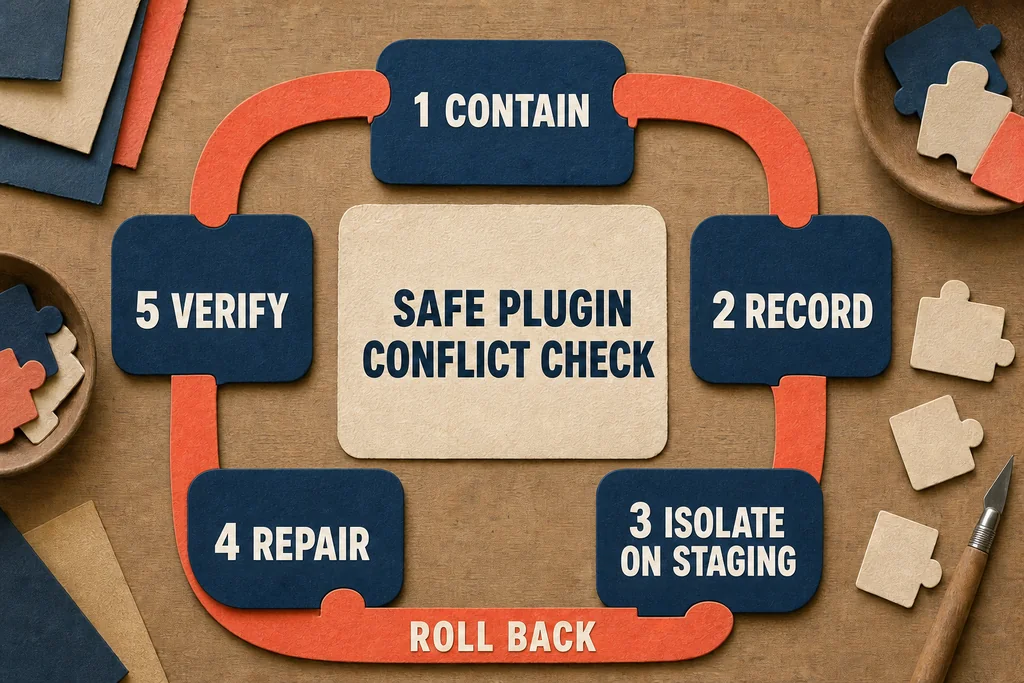
The safest process is deliberately boring: contain, record, clone, isolate, repair, verify. It preserves evidence and limits the number of moving parts. A quick mass deactivation may make one page load, but it can leave the site in a new and poorly documented failure state.
Backup first and negotiate later. Keep a restore path under your control, make the smallest reversible change, and test the workflow that matters to the business. That is how plugin troubleshooting becomes maintenance rather than roulette.
FAQ
How do I know whether two WordPress plugins conflict?
Can I deactivate a plugin when wp-admin is unavailable?
Should I deactivate all WordPress plugins on the live site?
Does clearing the cache fix a plugin conflict?
Prepared by
WordPress hosting and renewal-cost traps
She audits WordPress plans, renewal bills, backups, and plugin-heavy stores for independent operators.
Verified facts
HostScout editorialRelated articles
Website Builders Compared by What You Keep
Website builders compared by ownership, export, hosting, commerce, recurring cost, accessibility, performance, and support before you commit.
What Is a Website? What It Needs to Go Live
What is a website? Learn how pages, domains, DNS, hosting, browsers, security, renewals, and backups fit together before you launch.
Linux swap file setup for a low-RAM VPS
Linux swap file setup for a low-RAM VPS, with practical sizing rules, OOM tradeoffs, checks, and when to upgrade RAM instead.
What Is an Email Alias and When to Use One
What is an email alias? Learn how aliases route mail, when they beat a mailbox, and what to check before choosing email hosting.
What is WordPress? .org vs .com explained
What is WordPress? Learn how WordPress.org and WordPress.com differ, what each costs, and when self-hosted WordPress is worth it.
How to build a website: domain, hosting, platform
How to build a website by choosing the right platform, domain, DNS and hosting path, with checks for cost, ownership and migration risk.